Tour the schedule editor
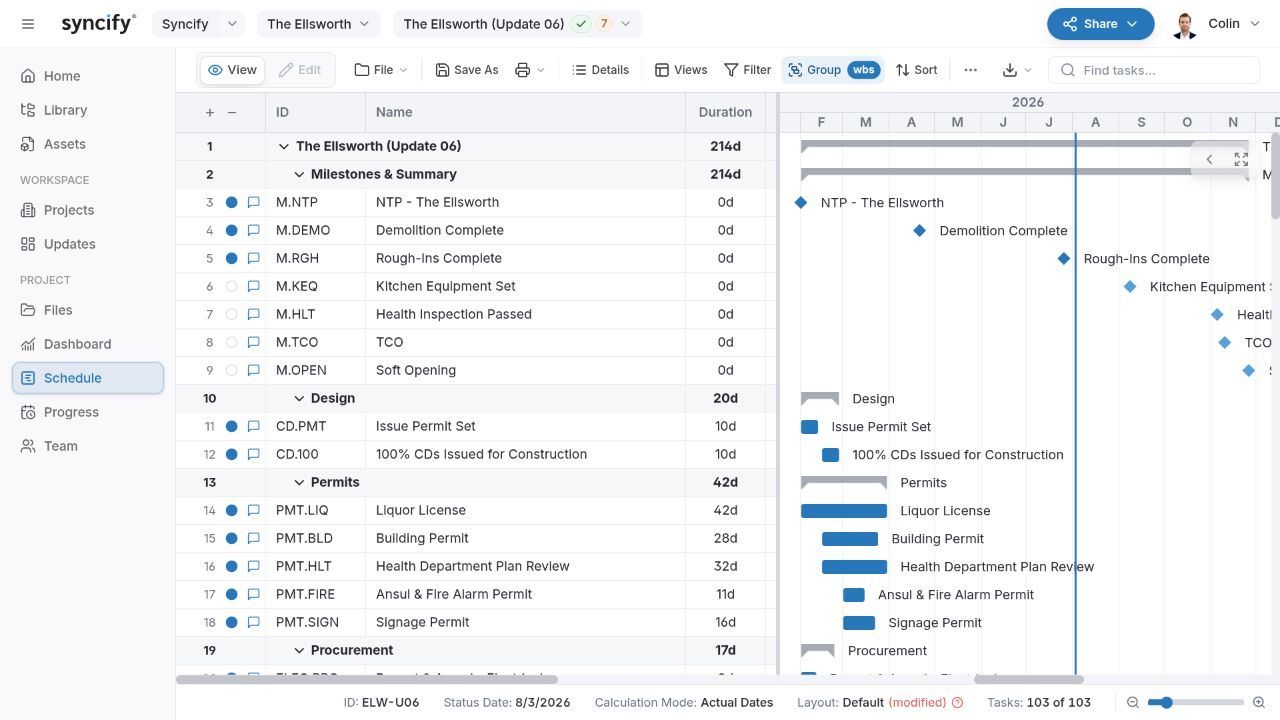
The schedule editor combines a table of work on the left with a Gantt timeline on the right. Use it to inspect the plan, edit activities, trace logic, and prepare a focused view for a meeting.

Confirm the file you opened
Check the project and schedule selectors in the top bar. A Current or Update tag helps identify the file, but also check the schedule name, ID, and status date. A baseline and a working copy can look nearly identical while serving very different purposes.
The bottom bar provides schedule context, including the status date, calculation mode, active print layout, and visible activity count. It also provides timeline zoom controls.
Read the grid
Each activity row contains fields such as ID, name, duration, start, finish, and predecessors. Structural WBS rows group the activities beneath them. Expand or collapse the hierarchy with the disclosure controls; use the expand/collapse controls when you want a project-wide summary or detail.
Select an activity to inspect it. Scroll horizontally to see more fields, resize columns to make text readable, and use Add column to display other information. A row that is filtered out is still in the schedule.
Find tasks searches for a recognizable activity name or ID. If you cannot find expected work, clear filters and check collapsed groups before assuming it was deleted.
Read the timeline
Bars show activity spans; milestones appear as point symbols; WBS rows summarize the work below them. Color palettes, comparisons, and highlights can change the appearance, so do not infer status from a color alone. Confirm status and dates in the grid or Details.
Use the bottom zoom controls to move between project-wide and short-term views. Zoom to fit helps bring the schedule’s span into view. Drag the divider between grid and timeline when you need more room for names or dates.
Enable Links to draw predecessor/successor relationships. On dense schedules, focus on a smaller group or path first so the diagram remains readable.
View mode and Edit mode
View is for reading, filtering, comparing, and reporting. Edit reveals the tools for changing activities, hierarchy, dates, relationships, and schedule settings.
Editing requires the right role and an editable file. A locked schedule, saved version, archived file, or progress-cycle stage may prevent it even if you normally have editing access. Follow the message displayed when choosing Edit; Troubleshooting explains the common cases.
Edits save when committed. Save As creates a version or copy. Preserve a version before a substantial set of changes if you need a reliable reference point afterward.
Open activity Details
Select an activity and choose Details. Use the panel to inspect:
| Group | Questions it helps answer |
|---|---|
| Status & Progress | Has work started? Are these actual dates? What is its physical or duration percent? |
| Duration | How much work was planned, performed, and remains? |
| Float & Info | What float does it have? Which activity type and calendar apply? |
| Constraints | Is a specific date restriction affecting this activity? |
A structural WBS row does not have the same editable fields as an ordinary activity. Fields also vary by activity type and status.
Choose a tool for the question
| Tool | Use it to… |
|---|---|
| Views, Filter, Group, Sort | Choose the rows and information shown |
| Critical | Highlight work within a chosen total-float threshold |
| Driving Path | Trace the work controlling a selected activity or milestone |
| Spotlight | Emphasize a date window for a review |
| Compare | Overlay or inspect a reference schedule |
| Quality | Investigate schedule checks and affected activities |
| Resources | Review assignments and time-distributed loading |
| Comments | Discuss the selected activity with the team |
| History | Review recorded changes to the selected activity |
| Print / Export | Create a shareable output |
At narrower window sizes, look in More actions. You can also open the command menu with Ctrl+K or Cmd+K to find an available command.
WBS and color tools in Edit mode
Use the WBS editing panel when you need to inspect or reorganize the work structure. Use Color Palette when the bars should follow a consistent visual scheme. Manage reusable palettes under Assets → Palettes. A palette changes presentation; it does not set activity status or create schedule logic.
Use Find and Replace for a deliberate text update and Calculate after scheduling changes when automatic calculation is off. These editing tools change data or the forecast, while Filter, Group, and Sort control the view.
A practical first review
Open the correct schedule, zoom to fit, and collapse the WBS to see the overall plan. Expand the area of interest, select an activity, and inspect Details. Turn on Links to understand its sequence, then use Driving Path for an important milestone. Save a view if you want to repeat the same review later.
Continue with Activities and WBS to edit the plan or Views and filters to prepare a review.